DataSolved · Dallas-Fort Worth

Get the Right Help, in the Right Place

Already a DataSolved client? Start with the support app in Teams or on your desktop. You can also email or call us.

First Choice

Use Teams or the Desktop App

Choose whichever app is easiest to reach.

DataSolved Support in Teams

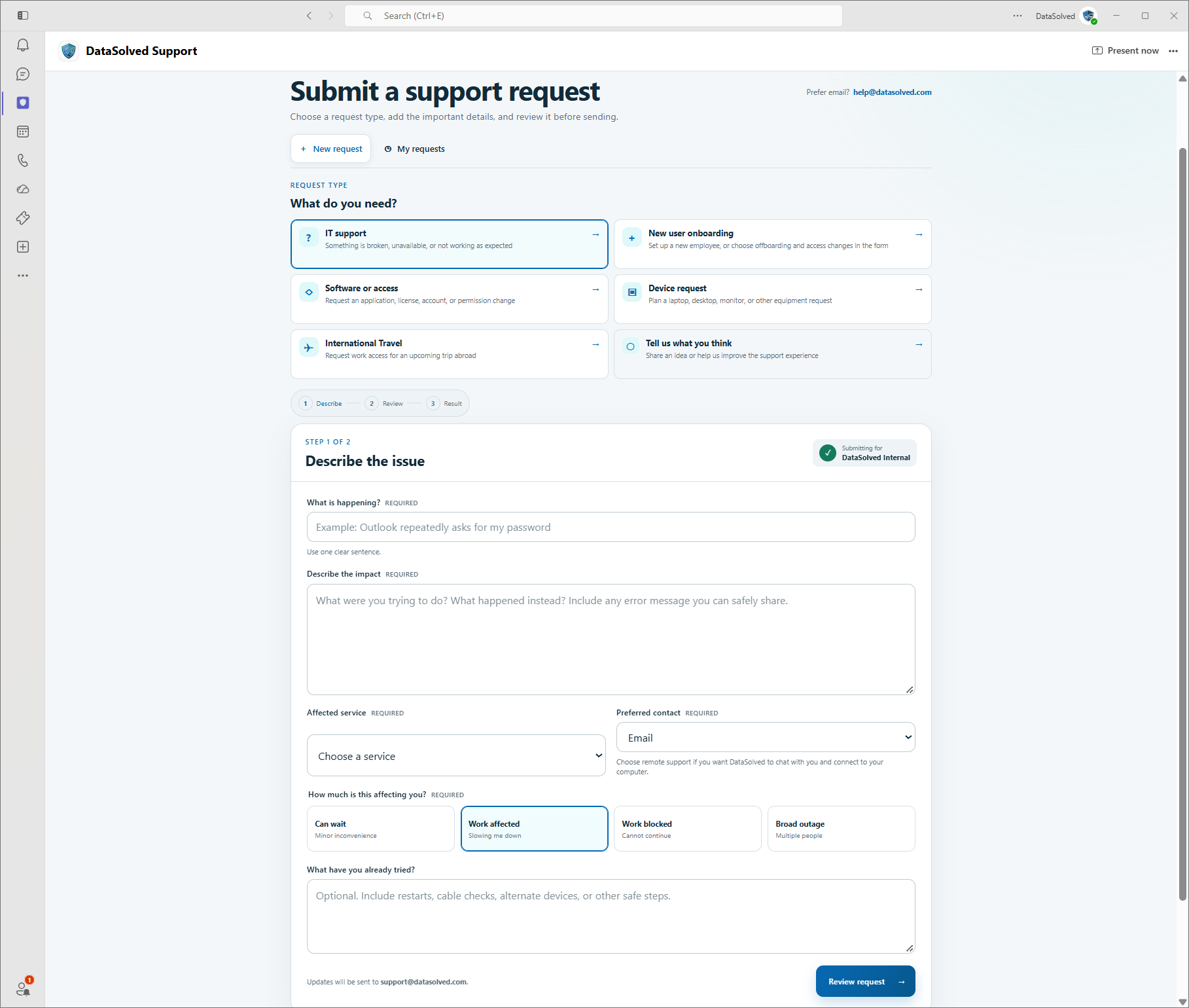
  1. Select the DataSolved Support shield icon in the Teams navigation bar.
  2. Select New request and choose your request type.
  3. Describe the issue and its impact. Review your request before sending it.

Use My requests to check your requests.
DataSolved Support on Your Desktop

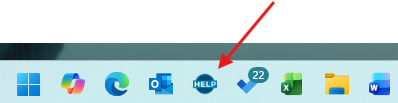
Click the blue HELP button on your Windows taskbar, or open the DataSolved Support shortcut on your desktop.

Both open the same DataSolved Support app.

Windows taskbar with a red arrow pointing to the blue HELP button
Blue HELP Button
DataSolved Support desktop shortcut
Desktop Shortcut
DataSolved Support in Teams showing request types and the support request form
View Full-Size Teams ScreenshotOpen the screenshot to zoom in on the form text.

Second Choice

Email Support

Send a short description of the issue and how it affects your work.

help@datasolved.com

Third Choice

Call Client Support

(972) 453-1105

Support coverage and prioritization follow your service agreement.

What to Include

Tell us which app is affected, what changed, when the issue started and whether other people are affected. Include any error message. Never include passwords.

Remote Support

If a technician asks you to join a remote session, use the link below. Only join a session you expect with your support team.

Open Remote Support