
Step 1
Download the Installer
Download the ConnectWise ScreenConnect installer configured for DataSolved remote support.
Download for macOSThe file ScreenConnect.ClientSetup.pkg will appear in your Downloads folder.

Step 2
Run the Installer
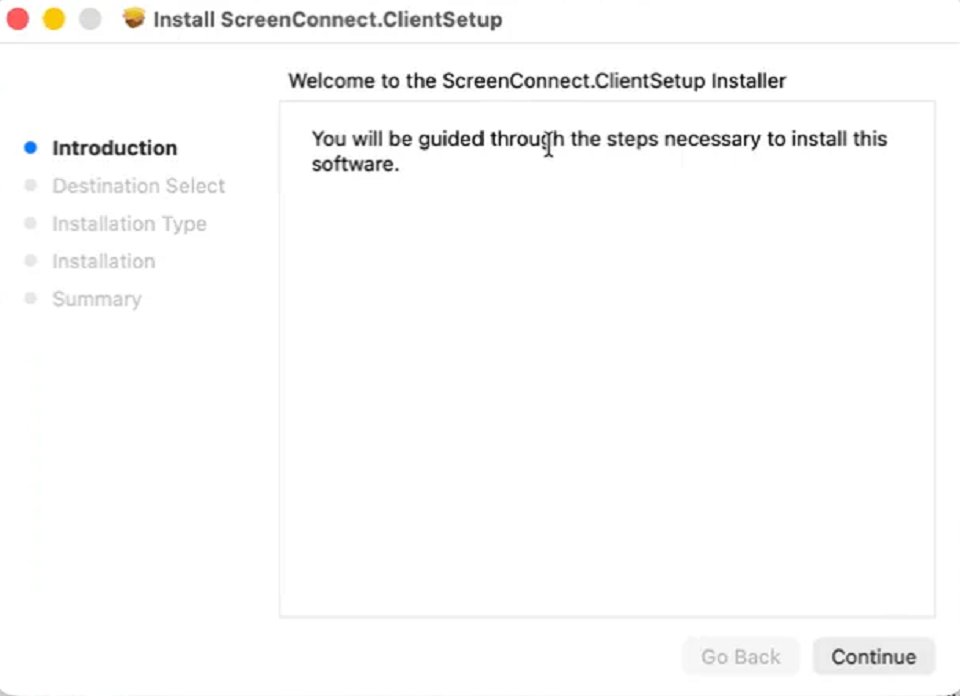
Open your Downloads folder and double-click ScreenConnect.ClientSetup.pkg. Follow the installer prompts shown below.
Welcome Screen: Click Continue
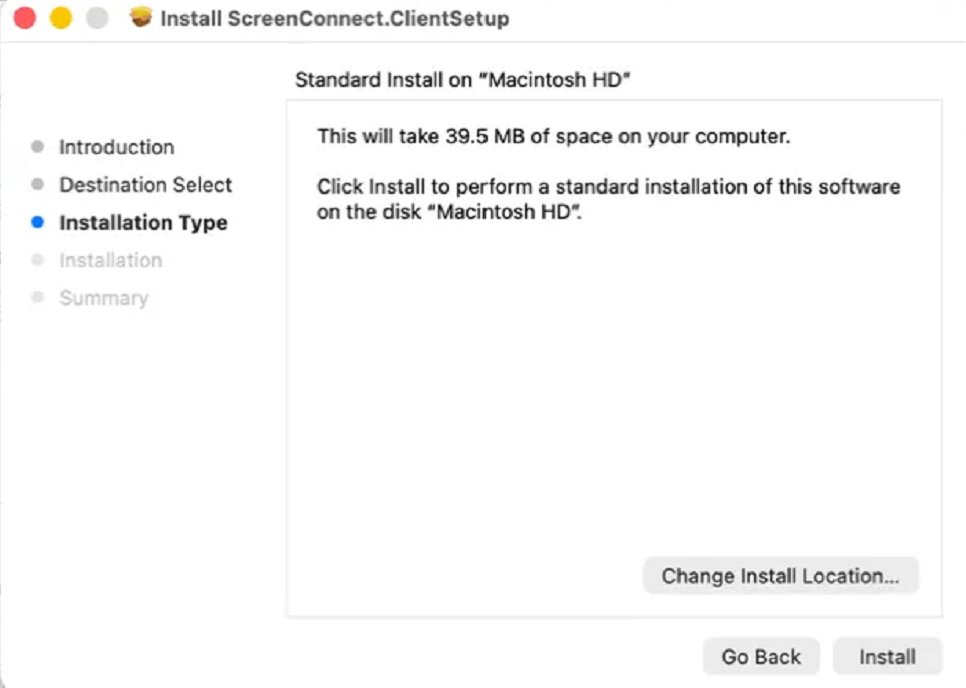
Installation Type: Click Install
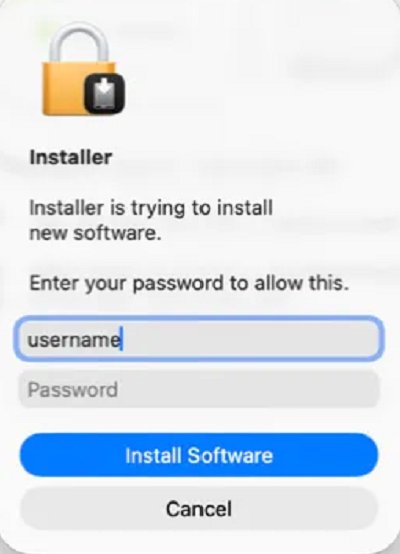
Enter Your Mac Password and Click Install Software
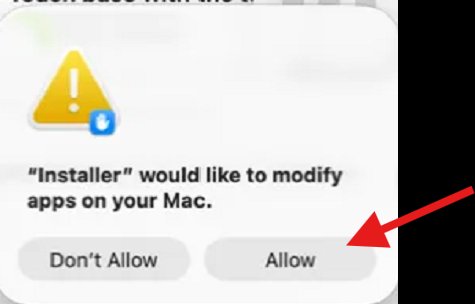
Permission Prompt: Click Allow
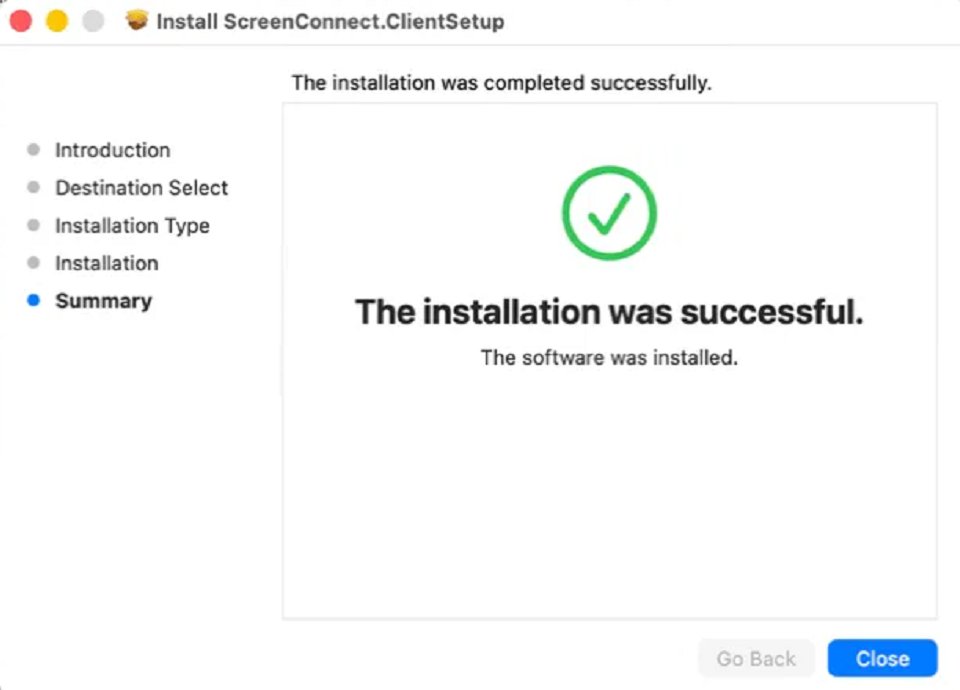
Installation Complete: Click Close
Step 3
If macOS Blocks the Installer
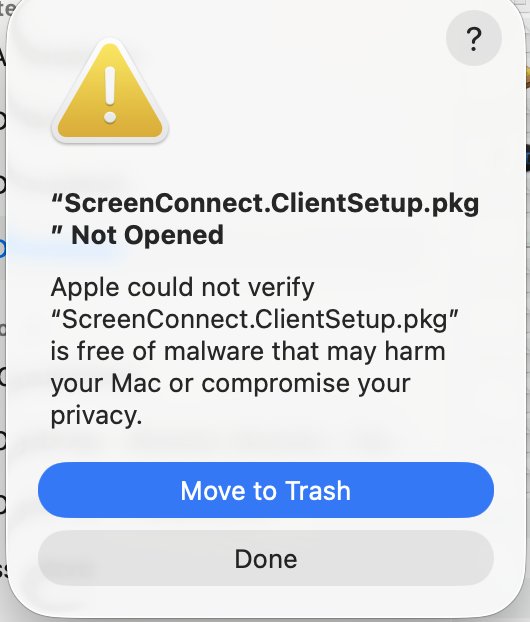
Gatekeeper may block the downloaded package. Click Done. Do not move the installer to Trash.
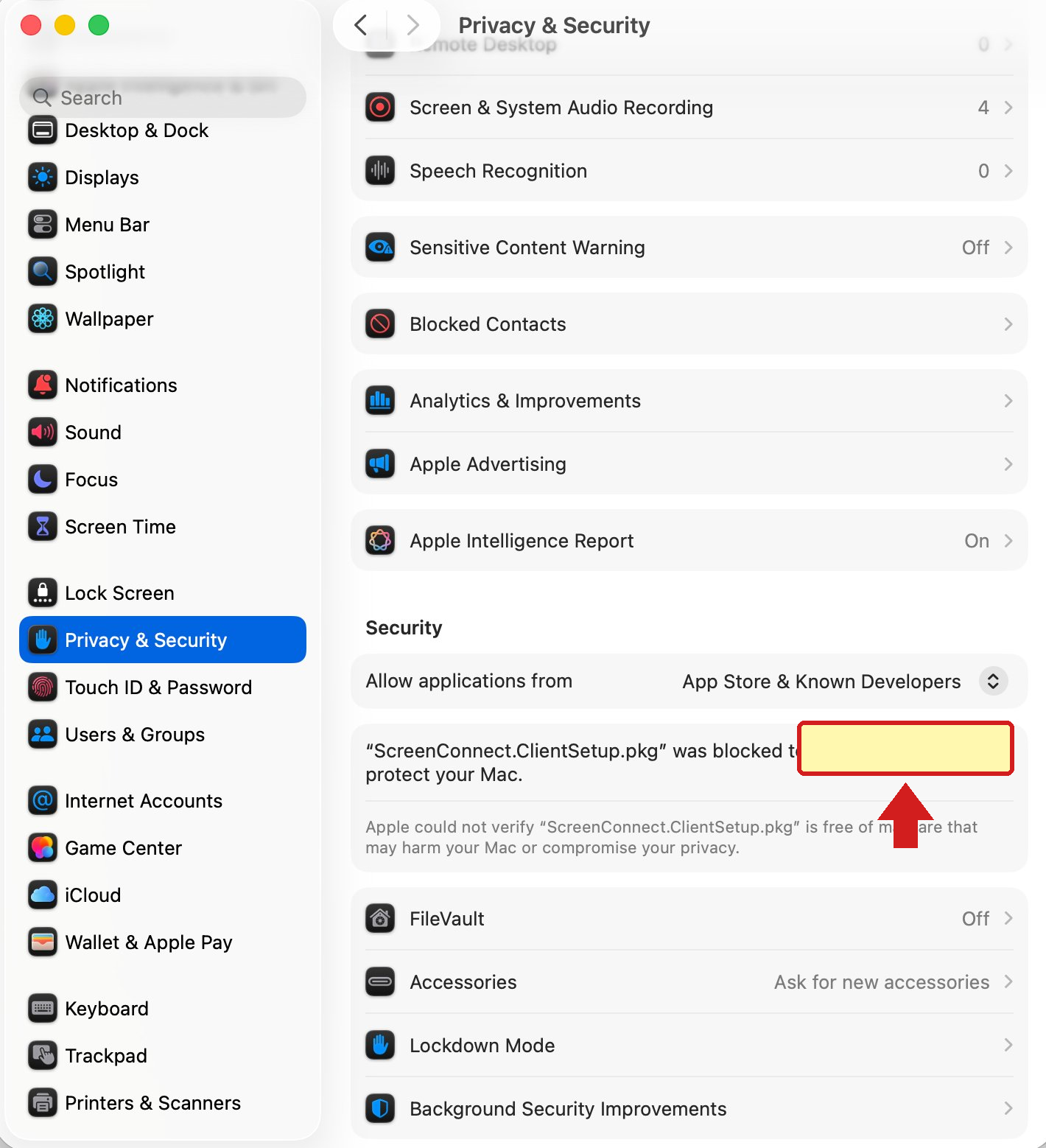
- Open System Settings from the Apple menu.
- Select Privacy & Security.
- Scroll to the Security section.
- Find the message that ScreenConnect.ClientSetup.pkg was blocked.
- Click Open Anyway.
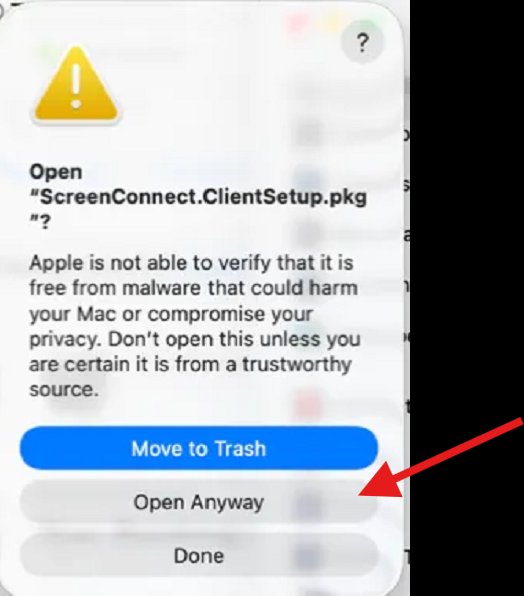
Confirm by Clicking Open Anyway
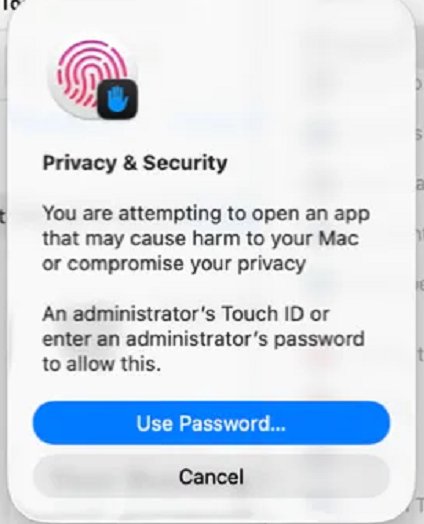
Enter Your Password and Click Use Password
Step 4
Grant Screen Recording and Accessibility Access
ConnectWise Control opens a Review System Access window after installation. Screen Recording lets your technician see the screen. Accessibility lets the technician control the mouse and keyboard.
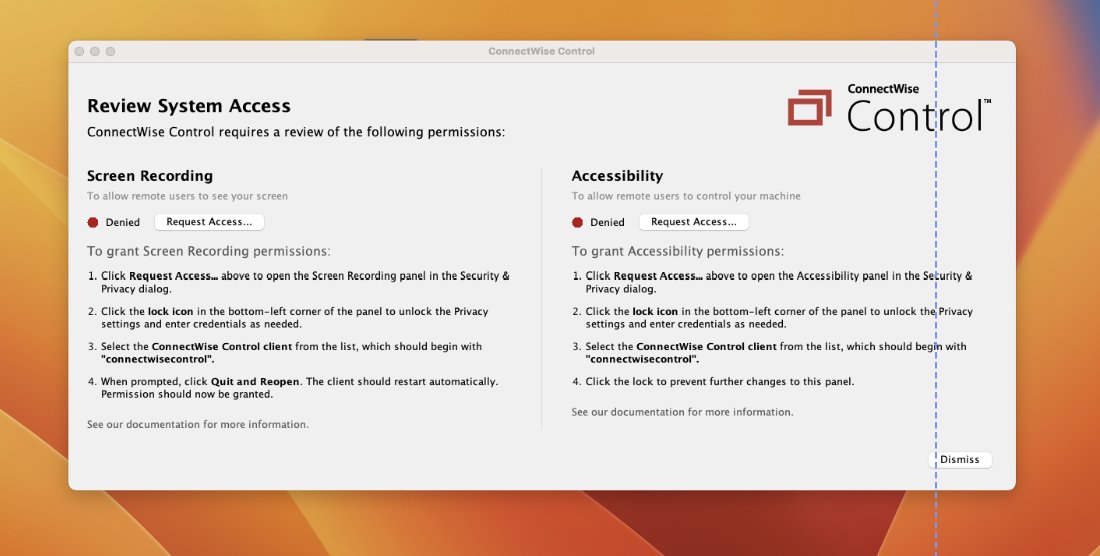
Screen Recording
- Click Request Access under Screen Recording.
- Open Privacy & Security, then Screen & System Audio Recording.
- Enable ConnectWise Control or connectwisecontrol.
- Enter your Mac password if prompted.
- Click Quit & Reopen when prompted.
Accessibility
- Return to the Review System Access window.
- Click Request Access under Accessibility.
- Open Privacy & Security, then Accessibility.
- Enable ConnectWise Control or connectwisecontrol.
- Enter your Mac password if prompted.
When both permissions show as granted, tell your DataSolved technician that the Mac is ready.